

Your MacBook’s screen resolution directly influences how sharp, clear, and detailed visuals appear. From text readability to color accuracy and workspace efficiency, the right resolution plays a crucial role in your overall user experience.
This guide provides a complete walkthrough—covering how to view your current resolution, how macOS scaling works and the safest ways to adjust your display settings for optimal performance and clarity.
What Is Screen Resolution on Mac?
Screen resolution refers to the number of pixels shown on your MacBook display, expressed as width × height (e.g., 2560 × 1600).
MacBooks use high-density Retina displays which provide much sharper visuals than standard screens.
Common MacBook resolutions include:
- 2560 × 1600 — MacBook Pro 13”
- 3024 × 1964 — MacBook Pro 14”
- 3456 × 2234 — MacBook Pro 16”
- 2560 × 1664 — MacBook Air (M2/M3)
How to Check Your Screen Resolution on Mac OS
Method 1: Check Resolution from System Settings (macOS Ventura & Sonoma)
- Click the Apple Menu
- Select System Settings
- Go to Displays
- Under Resolution, your current display resolution will appear
Method 2: Using About This Mac
- Click Apple Menu
- Select About This Mac
- Click More Info
- Go to Displays
This section shows your screen resolution and display specifications. You can also check your display resolution in a free website.
How to Change Your MacBook Screen Resolution
Method 1: Change Resolution from System Settings (macOS Ventura & Sonoma)
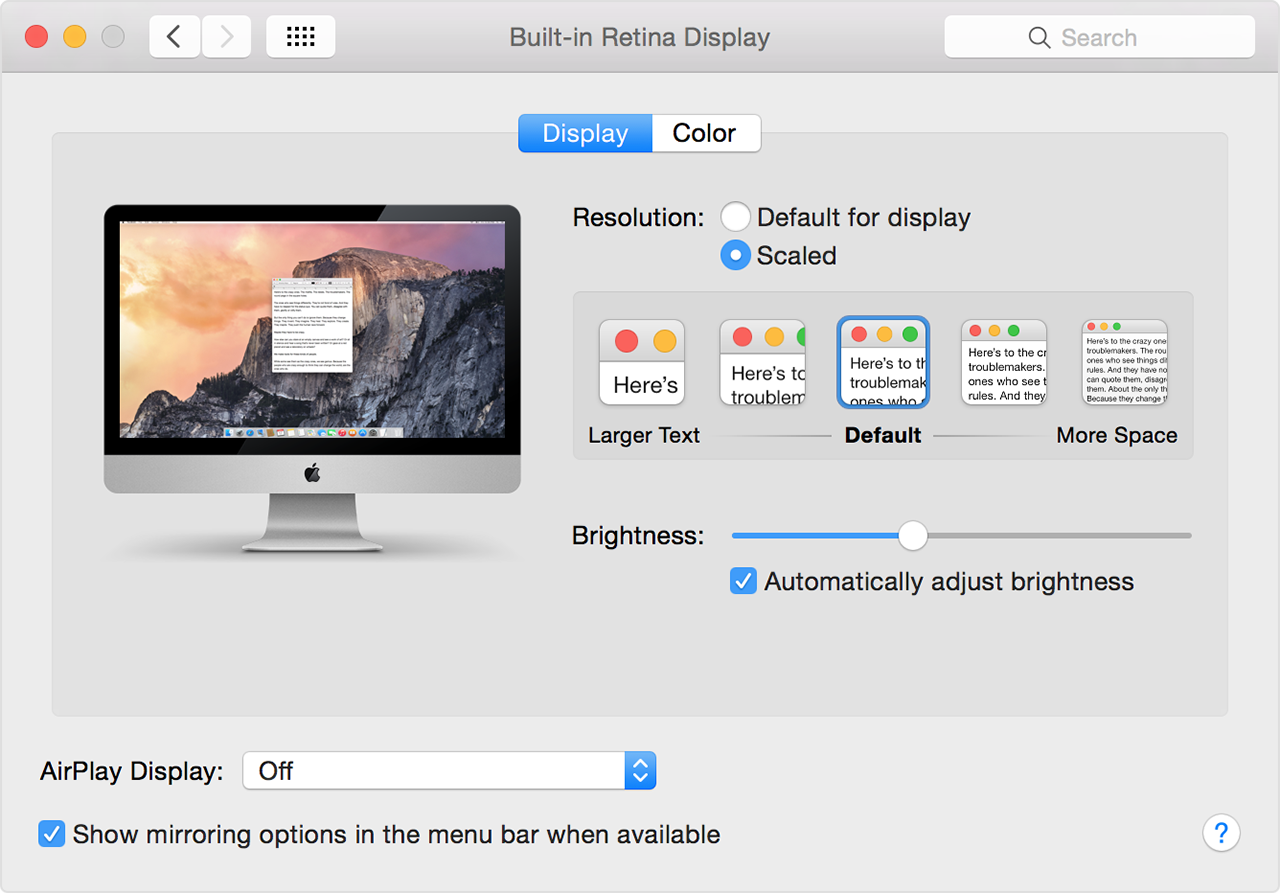
- Open System Settings
- Go to Displays
- Under Resolution, choose one of the following:
- Default
- More Space (smaller text, more workspace)
- Larger Text (bigger icons and text)
- Click to apply the new scaling option
macOS automatically adjusts the optimal Retina scaling to avoid pixelation.
Method 2: Show All Possible Resolutions
For full control:
- Go to System Settings → Displays
- Hold the Option key
- Click Scaled
- A complete list of resolutions will appear (e.g., 1600 × 1000, 2048 × 1280)
This method is useful for designers or developers needing precise scaling.
How to Change Screen Resolution on Older macOS Versions (Big Sur / Monterey)
- Open System Preferences
- Choose Displays
- Select Scaled
- Pick a resolution or scaling option
The interface is similar but slightly different in layout of Older macOS.
Best Resolution Settings for MacBook (Recommended)
Apple recommends using the Default for Display option for:
- Best clarity
- Perfect Retina sharpness
- Accurate colors
- Minimal strain on eyes
For productivity, more space gives you additional working area which is great for coding, editing or multitasking.
Troubleshooting MacBook Resolution Issues
1. Reset NVRAM
- Shut down your Mac
- Turn it on and immediately hold:
Option + Command + P + R - Release after 20 seconds
This will reset display configurations.
2. Check Display Cable (External Monitors)
Bad HDMI/USB-C cables may limit available resolutions.
Use:
- USB-C → HDMI 2.0 (for 4K 60Hz)
- USB-C → DisplayPort (best for high resolution)
3. Update macOS
New updates often fix resolution bugs or driver issues.
FAQs
Use Displays → More Space to increase workspace and reduce UI size.
Low-quality cables or adapters often reduce available resolutions.
Yes, using More Space may slightly increase GPU usage but it’s usually minimal.
Go to System Settings → Displays, where your current resolution is listed.
Conclusion
Checking and changing your MacBook screen resolution is simple and helps optimize clarity, performance, and workspace. Whether you’re a designer, coder, or casual user, adjusting your display settings can significantly improve your visual experience.
Leave a Reply