
Linux steps vary depending on your desktop environment (Ubuntu GNOME, KDE Plasma, XFCE, etc.), but the process is very similar across all major distributions.
On Ubuntu / GNOME
- Open Settings.
- Go to Displays.
- Under Resolution, choose your desired resolution.
- Click Apply.
- Confirm the change within the countdown to keep the new resolution.
On KDE Plasma
- Open System Settings.
- Select Display and Monitor.
- Go to Display Configuration.
- Choose a resolution from the Resolution dropdown.
- Click Apply.
On Linux Mint (Cinnamon)
- Open the Menu → Preferences.
- Click Display.
- Select a resolution from the list.
- Click Apply.
Using Terminal (Universal Method)
If the GUI method is not available or you’re running a minimal environment, use:
1. View available resolutions
xrandr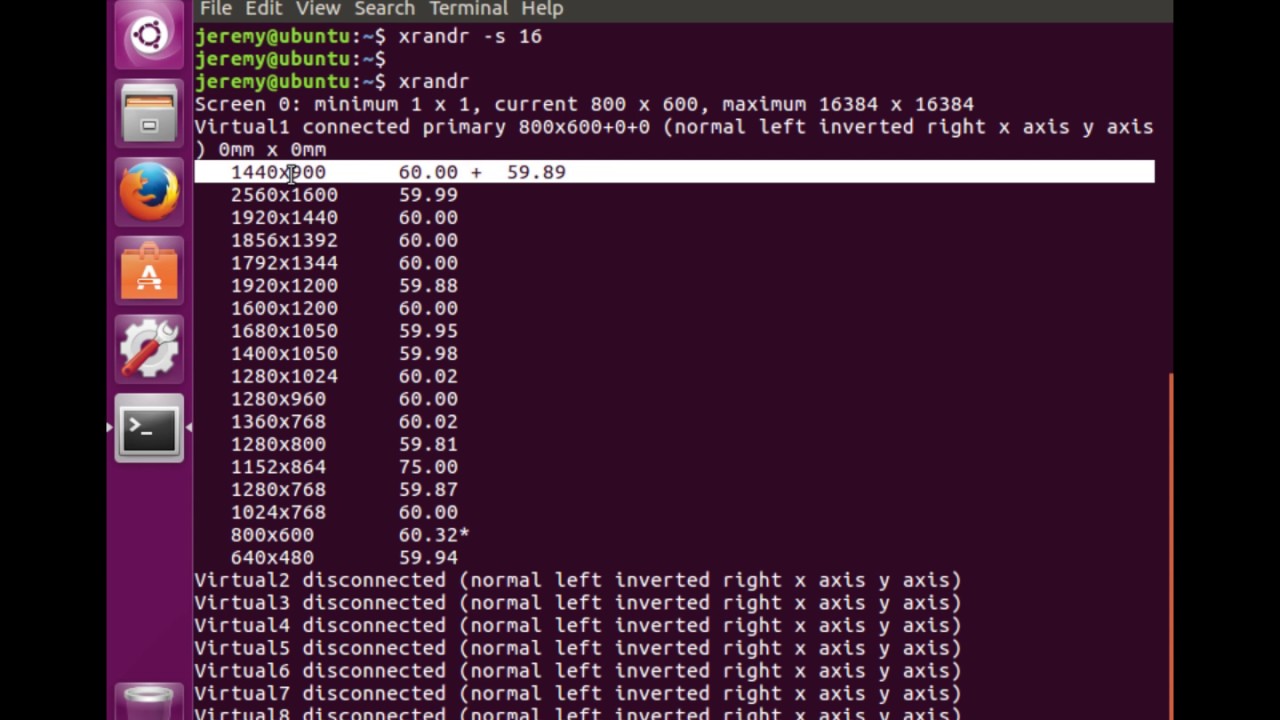
2. Set a resolution
Example:
xrandr --output HDMI-1 --mode 1920x10803. Add a custom resolution
cvt 1920 1080Copy the generated modeline and run:
xrandr --newmode "1920x1080_60.00" <paste-modeline-here>
xrandr --addmode HDMI-1 1920x1080_60.00
xrandr --output HDMI-1 --mode 1920x1080_60.00
Leave a Reply